Localize your game in three steps.
Scan and check, export one spreadsheet for your translator, import it back.
LocKit finds the texts the engine would never translate, fixes them for you
and checks every translation before it goes into the game.
v1.0.0UE 5.8Windows · Mac · LinuxEditor only: nothing ships in your game
Unreal Engine can translate your game, but the built in Localization Dashboard expects you to know about gather settings, manifests, archives and compiling. LocKit puts all of that behind three buttons in one panel:
1
Scan and check
Finds every text, hardcoded ones too, and checks fonts, translations and packaging. Most problems have a Fix automatically button.
2
Export for translators
One Excel file with every text, context and notes for the translator.
3
Import translations
Reads the file back, checks every line and compiles the translations into the game.
Every picture on this page comes from a real run of LocKit on a fresh Blank project with a small main menu: one Widget Blueprint with a title, four buttons and a coin counter. Nothing was drawn by hand.
// 02 / Setup
Install
You need: Unreal Engine 5.8 on Windows, Mac or Linux. LocKit works in Blueprint projects.
The zip from adrenalinegames.pl contains the ready Windows build, so on Windows you do not need Visual Studio.
On Mac or Linux the editor builds LocKit from the included source the first time you open the project (this needs Xcode on Mac or the Unreal Linux toolchain).
A
Bought on Fab
Open the Epic Games Launcher, go to your Fab library, find LocKit and install it to your Unreal Engine 5.8.
B
Bought on adrenalinegames.pl
Download the zip from the link in your e-mail and extract it (right click, Extract All).
Close Unreal Editor.
Open your project folder (the one with the .uproject file). If there is no Plugins folder, create one.
Copy the LocKit folder into Plugins, so you get YourProject/Plugins/LocKit/LocKit.uplugin.
Open your project.
C
Make sure it is enabled
Open Edit › Plugins, search for LocKit and tick Enabled. If the editor asks for a restart, restart it.
// 03 / Find it
Open LocKit
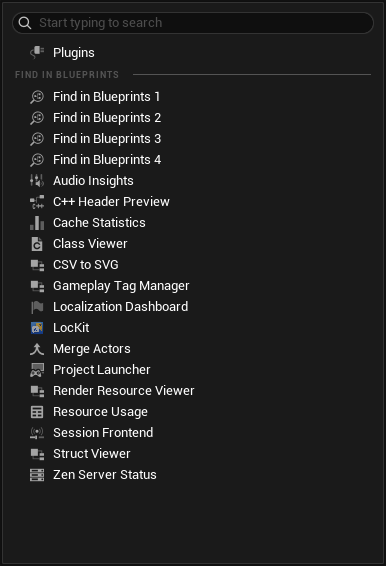
Open the Tools menu at the top of the editor and click LocKit. You can also click the LocKit button on the Level Editor toolbar.
The list of tools in the Tools menu. LocKit sits between Localization Dashboard and Merge Actors.
The panel opens as a normal editor tab: dock it wherever you like.
// 04 / Five minutes
Quick start
Open Tools › LocKit.
Pick the language your texts are written in and the languages to translate into.
Press 1 Scan and check. Look through the list, then press Fix automatically.
Press 2 Export for translators and send the .xlsx file to your translator.
When the file comes back, press 3 Import translations. The translations are compiled into the game.
Use Preview game in to see your UI in another language right in the editor. The sections below go through every step with pictures.
// 05 / Before step 1
Choose your languages
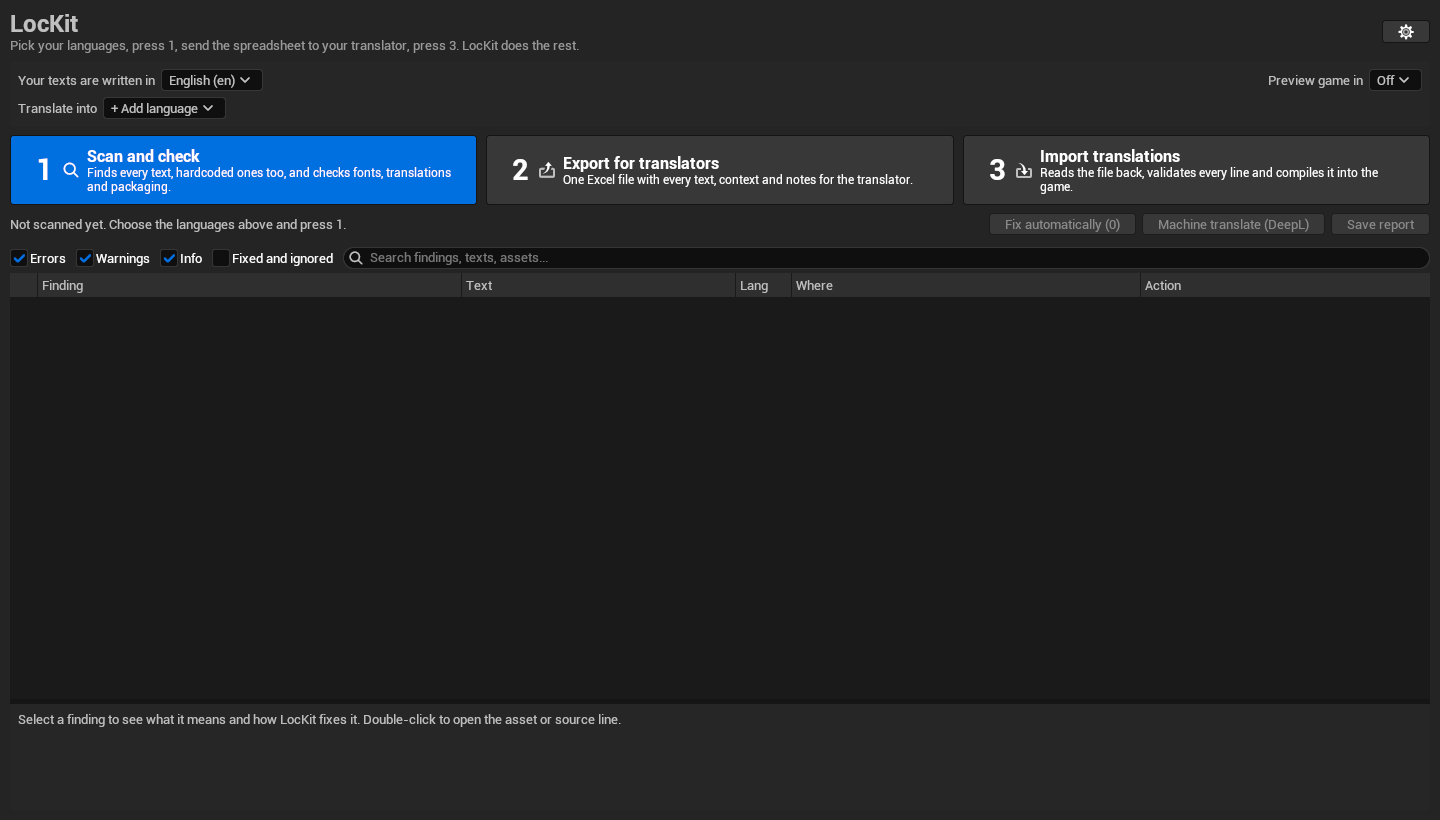
This is the panel the first time it opens in a new project. Nothing is scanned yet.
"Not scanned yet. Choose the languages above and press 1."
Your texts are written in: the language you typed your texts in. In most projects this is English (en).
Translate into: click + Add language. The menu lists common languages (French, German, Spanish, Polish, Japanese, Korean, Chinese and more). For anything else choose Other language and type its code, for example fr-CA, then press Enter.
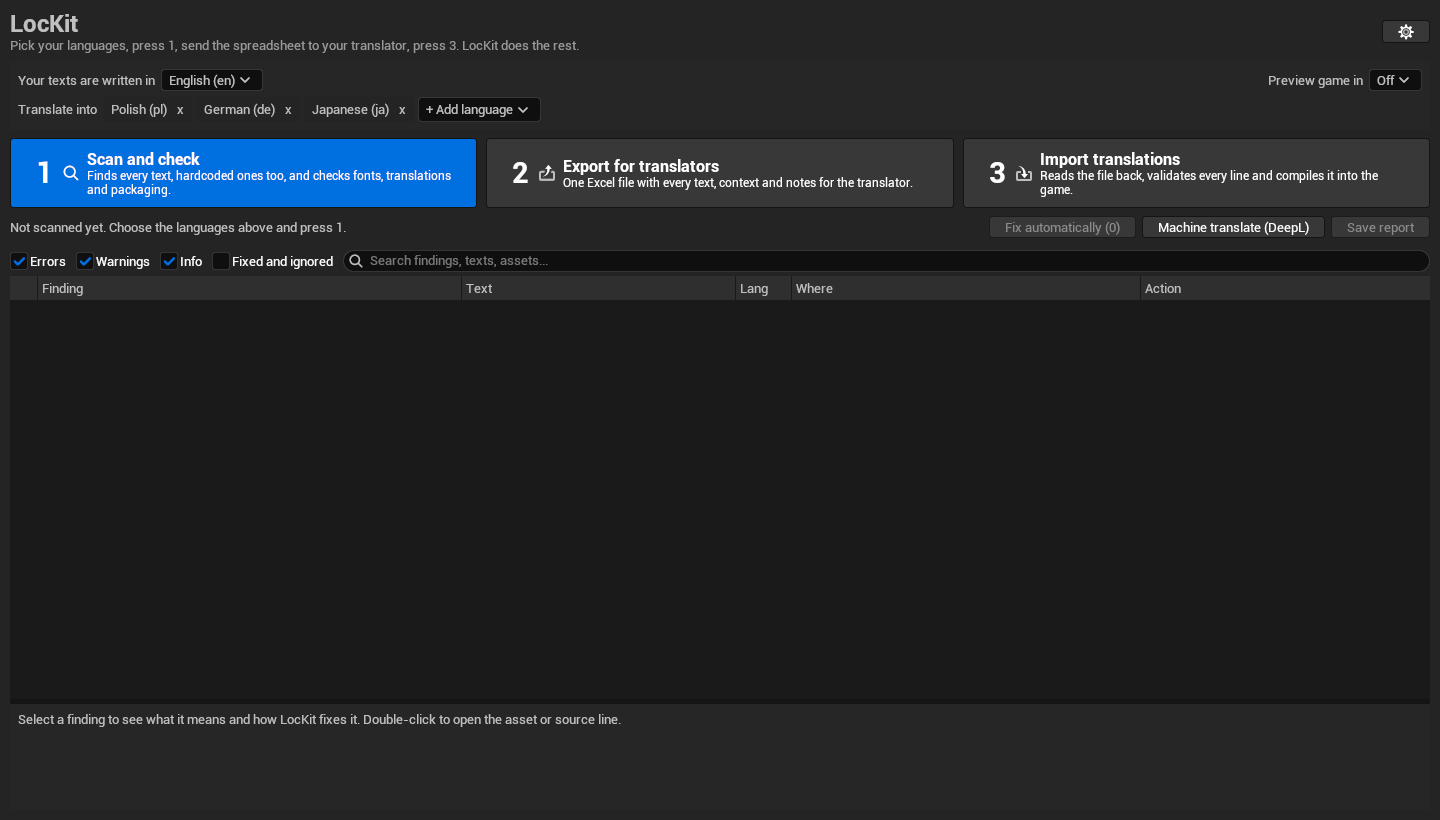
The small x next to a language stops translating into it. Its translations stay on disk.
In our demo we write in English and translate into Polish, German and Japanese:
Three languages picked. LocKit remembers them in the project settings, so the whole team shares them.
// 06 / Step 1
1 Scan and check
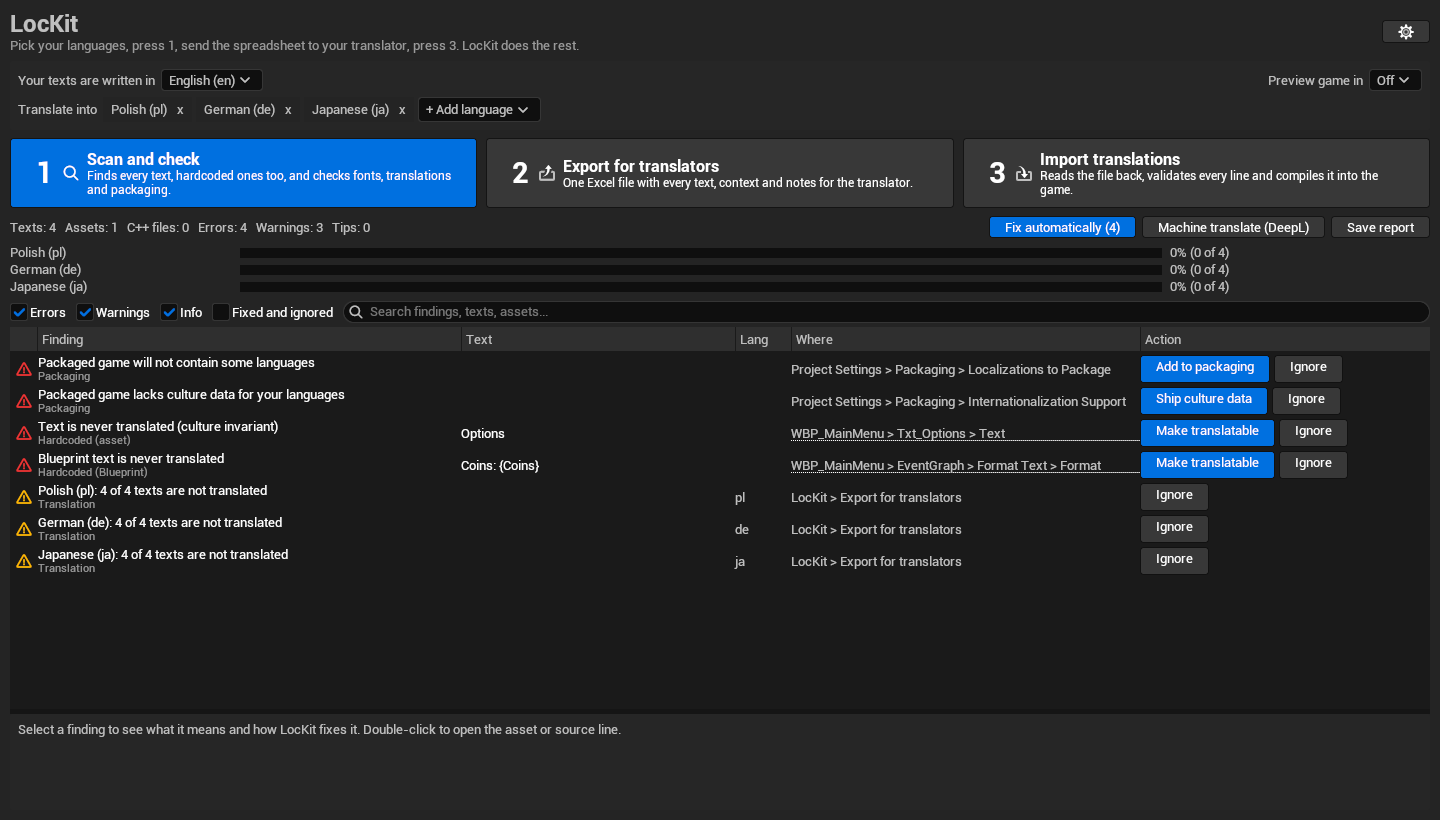
Press 1 Scan and check. LocKit collects every text of your project and checks it. Here is the result for our demo menu:
First scan of the demo: 4 errors, 3 warnings, 4 of them can be fixed automatically.
How to read the list
Finding: what is wrong. Red = error (players will see a problem), yellow = warning, the round icon = tip.
Text: the text in question. Lang: the language, when the finding is about one language.
Where: the asset and the exact place, for example WBP_MainMenu › Txt_Options › Text. Double click a finding to open it.
Action: the automatic fix for this finding, and Ignore.
Click a finding to see what it means and how LocKit fixes it in the box at the bottom of the panel.
The check boxes above the list (Errors, Warnings, Info, Fixed and ignored) and the search field filter the list.
What it found in the demo
Finding
What it means
Packaged game will not contain some languages
"Not in 'Localizations to Package': pl, de, ja. They work in the editor and silently disappear in the packaged build."
Packaged game lacks culture data for your languages
"'Internationalization Support' is 'English'. Players could not switch to the missing languages and numbers and dates would be formatted wrong. LocKit will set it to 'All'."
Text is never translated (culture invariant)
The Options button had Localize switched off. "The engine's gather skips this text, so every language shows the original. LocKit gives it a localization key."
Blueprint text is never translated
The text Coins: {Coins} typed into a Format Text node in the widget's Event Graph. "This Text pin is not localizable (the 'localize' flag is off). LocKit gives it a localization key."
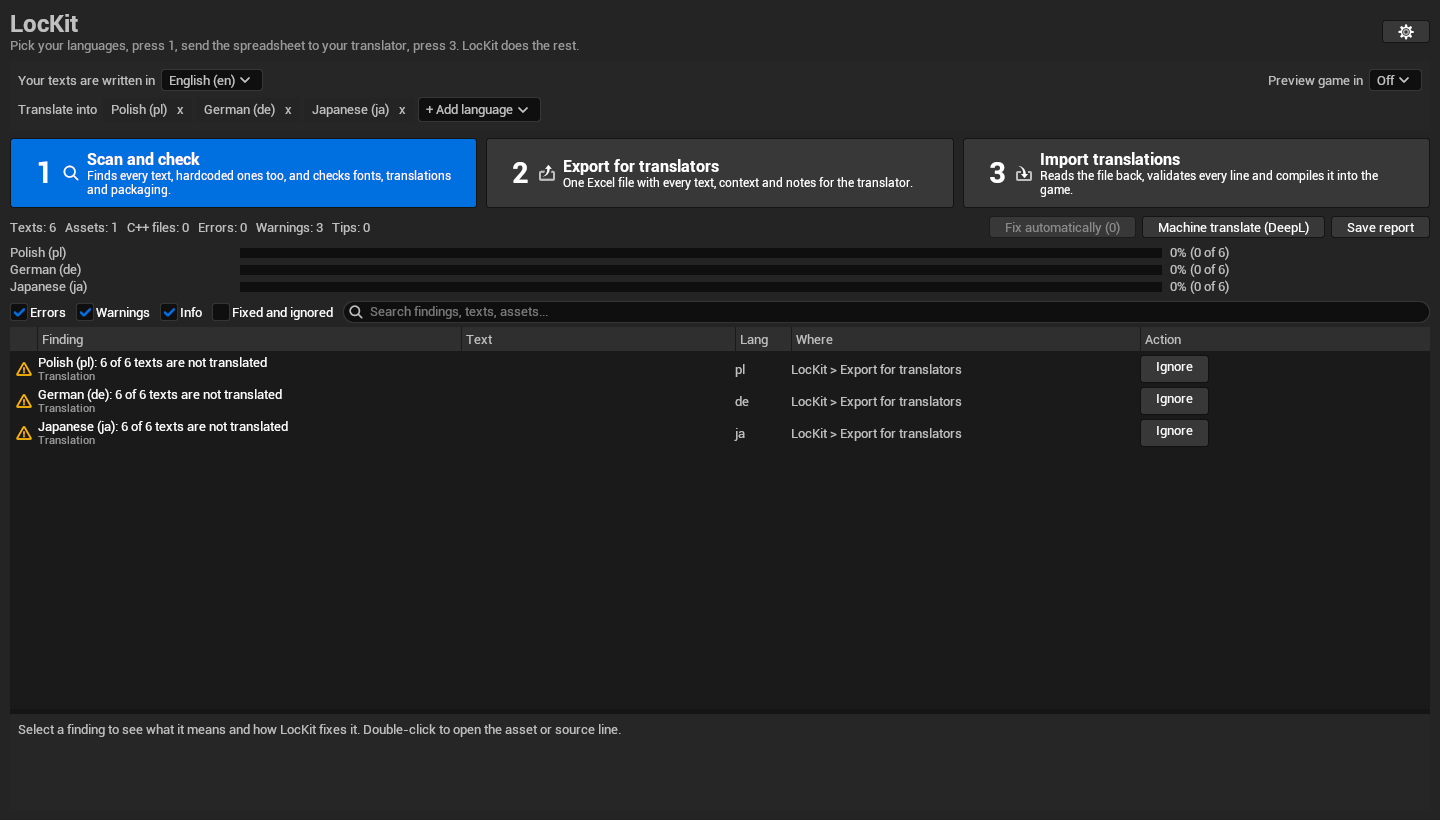
Polish (pl): 4 of 4 texts are not translated (same for German and Japanese)
"Players will see the original text. Export the spreadsheet, send it to your translator and import it back."
Why this matters: the Options button and the coin counter would have stayed in English in every language, and the packaged game would not have contained Polish, German or Japanese at all. In the editor everything looks fine, which is why these problems usually show up only after release.
The progress bars under the buttons show how much of each language is translated.
Ignore
Ignore hides a finding in future scans, for example your studio name that must never be translated. Ignored findings are saved in the project settings, so your team does not see them either. Tick Fixed and ignored to see them again and click Unignore.
// 07 / One click
Fix automatically
Press Fix automatically (4). LocKit asks once, copies every file it is about to change to Saved/LocKit/Backups, applies all fixes, saves the changed assets and scans again. You can also fix one finding at a time with the blue button in its row.
In the demo: "Applied 4 fixes." The second scan:
No errors left. The texts went from 4 to 6: "Options" and "Coins: {Coins}" are now part of the translation. What is left is the actual translation work.
What each automatic fix does:
Button
What LocKit does
Make translatable
Gives the text a localization key and saves the asset. For a text on a Blueprint node it also compiles and saves the Blueprint.
Give a new key
For two different texts that share one key (often after duplicating a widget): gives one of them a new key, so both can be translated.
Exclude from translation
For placeholder texts such as "Text Block" that would otherwise be sent to your translator.
Add to packaging
Adds your languages to Project Settings › Packaging › Localizations to Package.
Ship culture data
Sets Project Settings › Packaging › Internationalization Support so the packaged game has the data your languages need.
Set up localization
Creates or configures the localization target, so your texts are collected.
Load in game
Registers the translations so the game loads them.
Compile
Compiles the translations, so the game can use them.
Findings without a blue button need a human decision: double click them to open the place, change it by hand, then scan again.
// 08 / Step 2
2 Export for translators
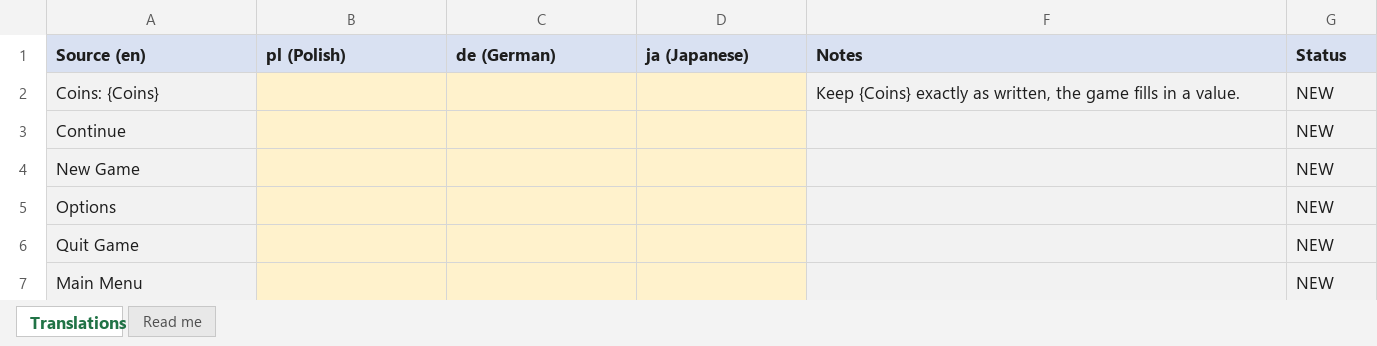
Press 2 Export for translators and choose where to save. The suggested name is YourProject_Translations.xlsx; .csv is also possible. LocKit confirms: "Exported 6 texts. Send the file to your translator, then use step 3." and offers to open the folder.
This is the file from our demo, as it was exported:
One row per text. Yellow cells still need a translation. Column E (Context) and the Namespace and Key columns are not shown in this picture.
Source: the original text. One column per language follows.
Context: where the text lives in the project, so the translator knows if it is a button, a title or a message.
Notes: hints for the translator. LocKit writes them itself, for example "Keep {Coins} exactly as written, the game fills in a value."
Status: NEW = not translated yet. CHANGED = the original text changed, and Notes shows the old text and the old translation. MACHINE = made by machine translation, see DeepL.
Namespace and Key: how the game finds each text. Nobody should edit them.
All cells are formatted as text, so Excel does not turn "1/2" into a date.
The second tab, Read me, explains all of this to the translator, in these words:
1. Work in the 'Translations' tab. Type your translation into the column of your language (yellow cells still need a translation).
2. Do not edit the grey columns: Source, Context, Notes, Status, Namespace and Key. The game finds each text by Namespace and Key.
3. Keep placeholders in curly braces exactly as written, for example {0} or {PlayerName}. The game replaces them with values.
4. Keep rich text tags such as <Bold>word</> around the matching words.
5. Short labels like E, LMB or F1 are usually keys on the keyboard or gamepad: keep them as they are.
6. Status NEW means not translated yet. CHANGED means the original text changed: the Notes column shows the old text and the old translation.
MACHINE means a translation in this row was made by machine translation (Notes says which languages). Check it, correct it if needed, then delete the word MACHINE from the Status cell.
7. Use Alt+Enter for a line break inside a cell. Save as .xlsx when you are done and send the file back.
8. Translations that are much longer than the original may not fit on screen. Prefer short wording for buttons and menus.
// 09 / Meanwhile
What the translator does
The translator opens the file in Excel, LibreOffice or Google Sheets, types the translations and sends the .xlsx back. Translators may reorder or delete columns: LocKit finds the columns by their header.
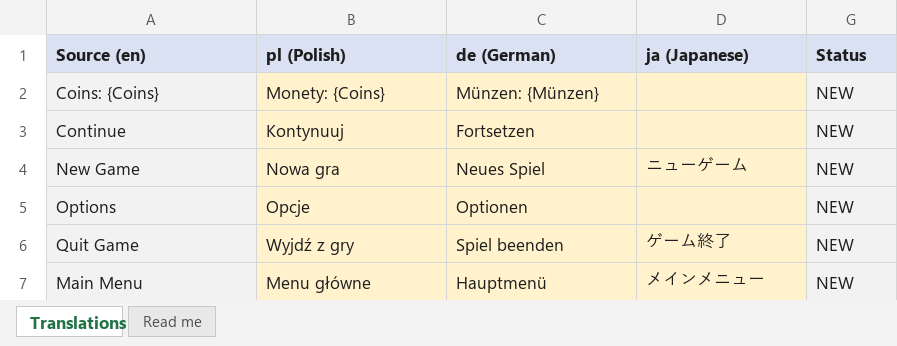
For the demo we filled the file ourselves. Polish is complete, Japanese is half done, and in German we made a typical mistake on purpose: the placeholder {Coins} was translated to {Münzen}.
The file as it came back. Note row 2 in German: "Münzen: {Münzen}".
// 10 / Step 3
3 Import translations
Press 3 Import translations and pick the file. LocKit checks every line before anything goes into the game, then compiles the translations. The summary for our demo:
Imported 14 translations for pl, de, ja.
0 reused for identical texts, 0 unchanged.
1 rejected because of broken placeholders, 0 skipped because the original changed after export, 0 rows no longer exist in the project.
Translations compiled: yes.
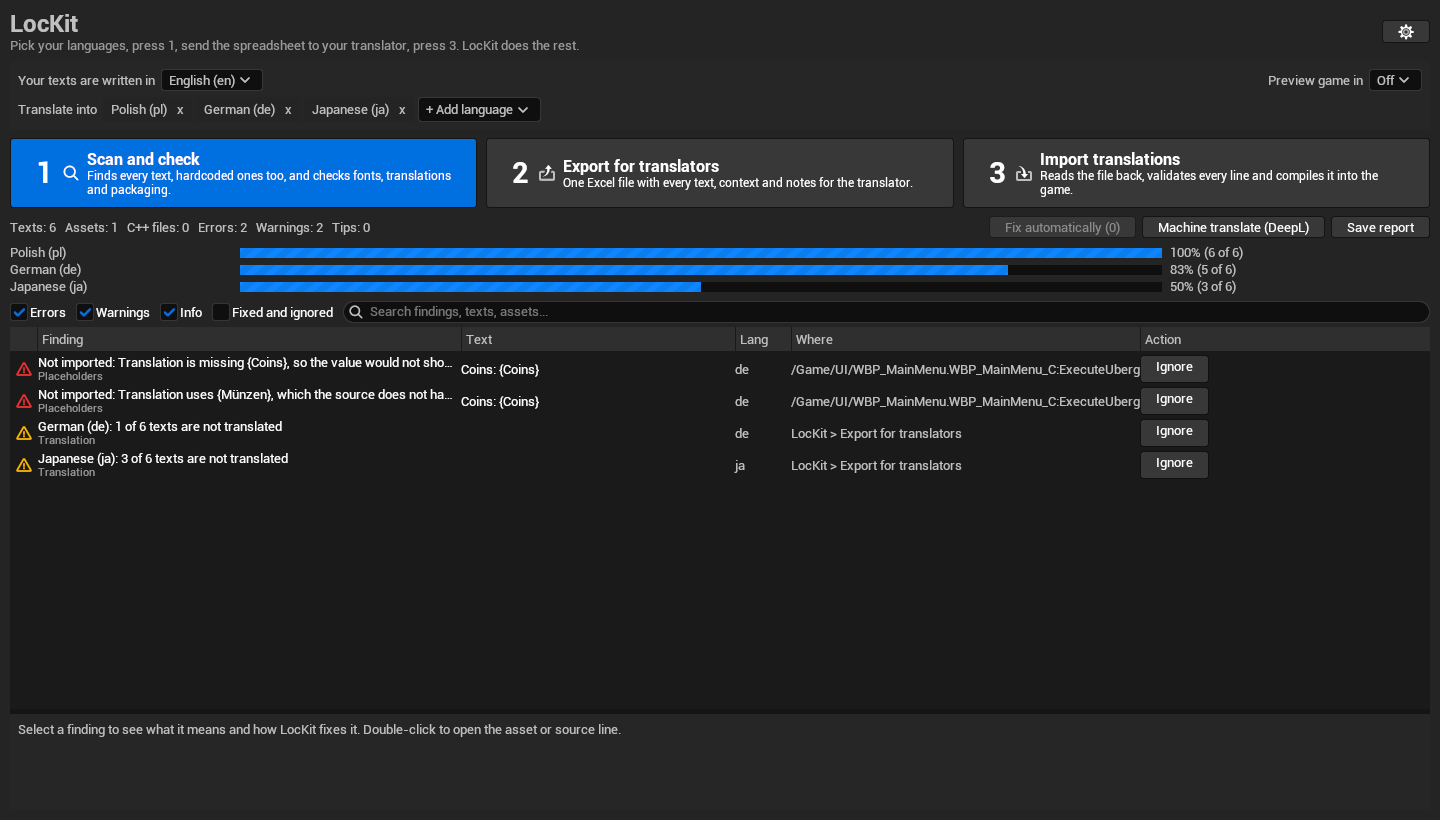
Polish 100%, German 83% (5 of 6), Japanese 50% (3 of 6). The broken German line was not imported, and the list says why.
The German coin counter was refused for two reasons, both shown in the list: "Translation is missing {Coins}, so the value would not show in game." and "Translation uses {Münzen}, which the source does not have. Placeholders must not be translated." Without this check the German game would show the words "Münzen: {Münzen}" instead of the number of coins.
Other things the import takes care of:
Empty cells never erase a translation you already have.
If the original text changed after you exported the file, that row is skipped and listed, because the translation was made for the old text.
Rich text tags that differ from the source, translated key labels (E, LMB, F1) and translations much longer than the source are flagged.
Importing the same file twice changes nothing: the second time the translations are counted as "unchanged".
Fix the broken line in the spreadsheet (or ask your translator to), then import the file again.
// 11 / Check your UI
See your game in another language
Pick a language in Preview game in (top right of the panel) and the game texts in the editor switch to it, for example in the UMG designer. Off (your texts as written) switches back. The preview turns off by itself when you close the panel.
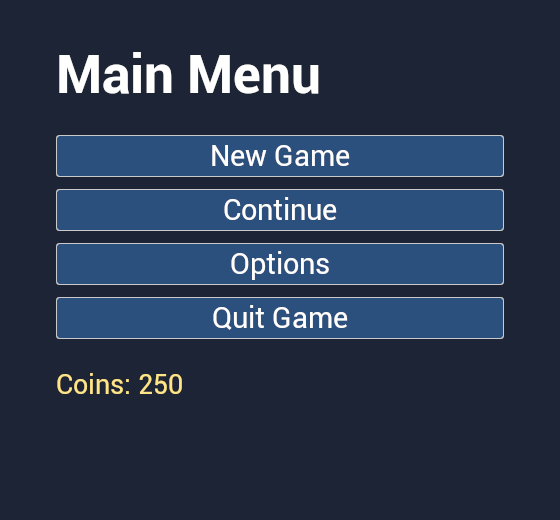
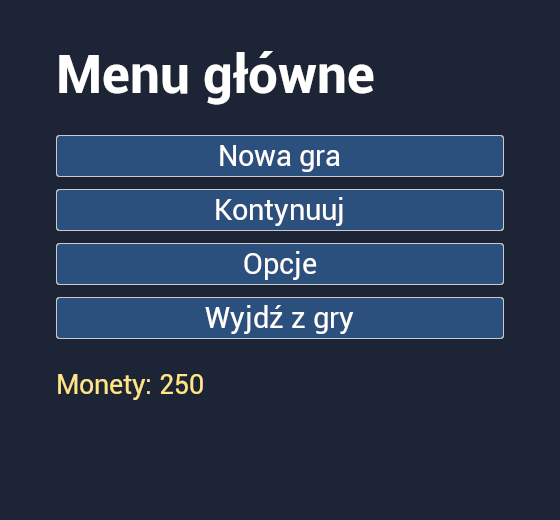
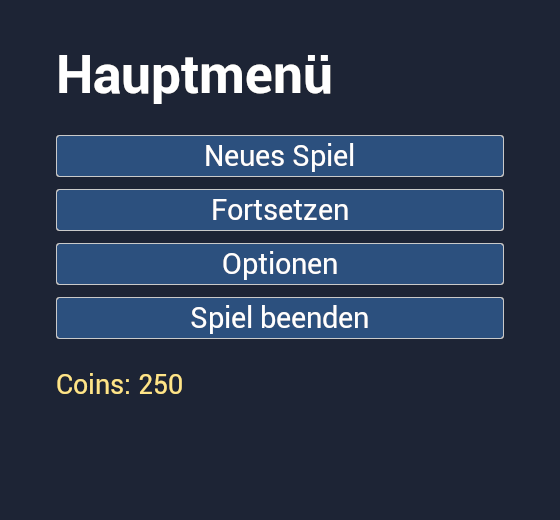
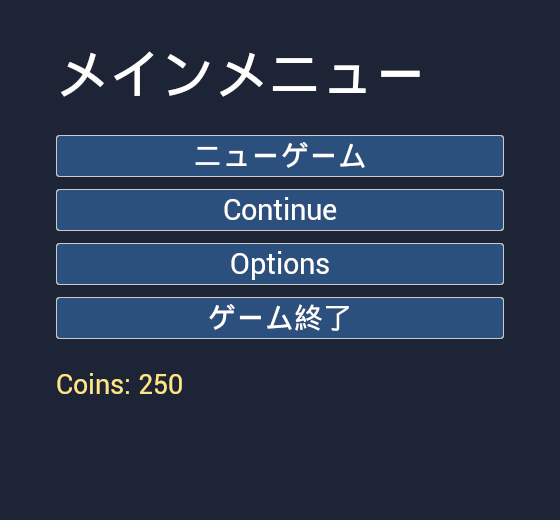
Our demo menu after the import, drawn by the editor in each language:
English (as written)
Polish: complete
German: coin line refused, still English
Japanese: half translated
Untranslated texts fall back to the original, which is exactly what players would see. The preview is the quickest way to spot a button text that is too long for its button.
// 12 / Day to day
When your texts change
Keep working as usual. When you add or change texts, run 1 Scan and check again, then export. The new file contains everything, and the translator sees:
NEW for texts that were never translated,
CHANGED for texts whose original changed, with the old text and the old translation in Notes, so a small edit stays a small edit.
Unreal drops a translation as soon as its original text changes. LocKit keeps every translation your project ever had (in Saved/LocKit/History) and shows the previous one to the translator, however many scans ran in between.
// 13 / Optional
Machine translation (DeepL)
No translator yet? Machine translate (DeepL) fills every untranslated text with DeepL, using your own DeepL API account. This is optional: everything else in LocKit works without it.
Create a DeepL API account on deepl.com and copy your API key. Free keys end with :fx; LocKit picks the right DeepL server from the key.
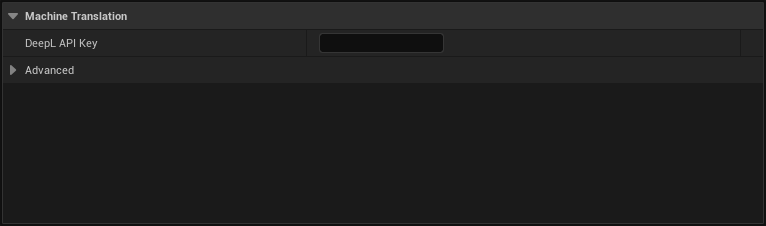
Open Project Settings › Plugins › LocKit (personal) and paste the key into DeepL API Key. If you press the DeepL button without a key, LocKit offers to open this page for you.
Press Machine translate (DeepL). Before anything is sent, LocKit tells you how many texts and characters will go to DeepL and asks you to confirm.
Project Settings › Plugins › LocKit (personal). The key is stored on your computer only, never in the project's shared config, so it does not end up in version control.
Identical texts are sent once. Key labels (E, LMB, F1), placeholder texts and plural or gender patterns are skipped.
Placeholders like {Coins}, rich text tags and special characters are hidden from DeepL and put back afterwards. Every result is checked like an import: a translation that breaks a placeholder or tag is not used.
Machine translations go into the game right away and are marked MACHINE (yellow) in the next export. Your translator checks them and deletes MACHINE from the Status cell; after the import they count as reviewed. The progress bars show how many machine translations nobody checked yet.
The characters count against your DeepL quota, and the texts leave your computer. LocKit says both in the confirmation.
// 14 / Reference
Everything the scan checks
The demo only needed a few of these. A real project usually hits more.
Texts that are never translated
Texts with Localize switched off or without a localization key, in Blueprints, Widget Blueprints, Data Assets, Data Tables, Sound Waves and any other asset, including texts inside structs, arrays, maps and sets.
Text pins on Blueprint nodes with Localize switched off.
Strings typed into a Blueprint graph and turned into Text with "To Text (String)" or "To Text (Name)", and Text built from typed in strings (Append, Build String).
Options of String ComboBoxes, and player text stored in String variables or Data Table String columns.
Texts that point to a String Table entry that no longer exists.
Problems that lose translations
Two different texts sharing one localization key (typical after duplicating a widget). Only one of them could be translated.
Placeholder texts such as "Text Block" or "Lorem ipsum" that would be sent to your translator.
Translations
Missing and outdated translations per language, with progress bars.
Translations that lose or rename a {placeholder}.
Rich text tags that differ from the original.
Key labels such as E, LMB or F1 that were translated, which changes the key the player is told to press.
Translations much longer than the original (they may not fit the widget).
Spaces and line breaks at the start or end that differ from the original.
The same text translated in different ways.
Fonts
For every language: characters your fonts cannot draw. Players would see empty boxes instead of letters. LocKit reads the fonts' character tables directly and also checks the per language sub fonts and the fallback font of a composite font.
Project and packaging setup
No localization target, or a target that gathers nothing.
The game not loading the translations.
Languages missing from "Localizations to Package", so they disappear from the packaged game.
Internationalization Support too small for your languages.
Translations that were not compiled.
Save report writes the current list to an .xlsx or .csv file, for example to share it with your team.
// 15 / Options
Settings
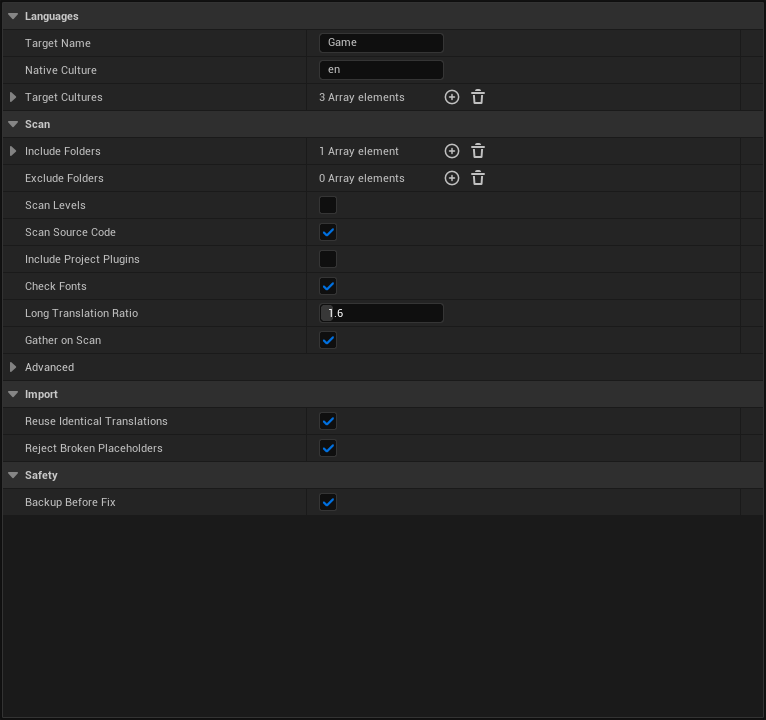
The gear button at the top right of the panel opens Project Settings › Plugins › LocKit. These settings are saved with the project, so your whole team uses the same ones. The defaults are right for most projects.
The settings of the demo project (with Polish, German and Japanese chosen).
Setting
What it does
Target Name
Name of the localization target LocKit manages. "Game" is what the engine expects for game text. Leave it.
Native Culture
The language your texts are written in, for example "en". Same as "Your texts are written in" in the panel.
Target Cultures
The languages you want to ship. Same as "Translate into" in the panel.
Include Folders
Content folders to scan. Default is your whole project content (/Game).
Exclude Folders
Content folders to skip, for example a marketplace pack you do not want to translate.
Scan Levels
Also scan levels. Off by default because it is slower on big projects. Turn it on if you place texts in maps, for example Text Render actors.
Scan Source Code
Leave it on. It only matters if your project has code.
Include Project Plugins
Also check plugins inside your project's Plugins folder.
Check Fonts
Check that your fonts contain every character of every language.
Long Translation Ratio
Report translations longer than the original by this factor (default 1.6), since they may not fit the UI.
Gather on Scan
Collect all texts on every scan, so the translation checks see your latest texts.
Reuse Identical Translations
When a text is translated once, use that translation for identical untranslated texts on import.
Reject Broken Placeholders
Skip imported translations whose {placeholders} do not match the original, instead of shipping broken text.
Backup Before Fix
Copy every file to Saved/LocKit/Backups before LocKit changes it.
Advanced › Ignored Findings
The findings your team decided to ignore.
Personal settings (only on your computer) are in LocKit (personal): the DeepL API key.
// 16 / Peace of mind
Backups and safety
Before LocKit changes an asset, it copies it to Saved/LocKit/Backups/<date>.
Before every gather and import, LocKit saves a snapshot of your localization data to Saved/LocKit/Snapshots (the last 10 are kept).
Every translation your project ever had stays in Saved/LocKit/History.
If you set up a localization target by hand in the Localization Dashboard, LocKit never changes its gather settings. It only adds your languages to it.
LocKit is an editor plugin. Nothing from it is added to your packaged game.
Tip: if you use version control, commit before your first Fix automatically. Then every change LocKit made is easy to see.
// 17 / Help
Questions and limits
Do I need to know the Localization Dashboard?
No. LocKit creates and configures everything the Dashboard would. If you already set up a target there by hand, LocKit keeps your gather settings and only adds your languages.
My translator sent an .xls file.
Old .xls files are not supported. Open the file and save it as .xlsx (Excel Workbook). .csv files in UTF-8 work too, separated by commas, semicolons or tabs.
A text must never be translated (studio name, game title).
Select the finding and press Ignore. Your team will not see it either.
LocKit reports "Hardcoded string converted to Text" but has no fix button.
That is a String typed into a Blueprint graph and turned into Text with "To Text (String)". LocKit reports it but does not rewrite the graph. Double click the finding to open the node, then replace the String and the conversion with a Text value (a Text literal or a Text variable).
A text in a Blueprint is translated in the spreadsheet but not in the game.
The engine collects Blueprint graph texts from compiled Blueprints, so texts on nodes that never run (not connected to anything) are not translated. Connect the node or remove it.
Texts placed in my levels are missing.
Levels are not scanned by default. Turn on Scan Levels in the settings.
The summary says "Gather did not run, translation numbers may be old."
The text gather did not run during this scan, so the translation progress comes from the previous one. Check that Gather on Scan is on and scan again. If gathering fails, the Output Log (Window › Output Log) says why.
Players see empty boxes instead of letters.
Your font does not contain those characters. LocKit's font check lists the font and the missing characters per language. Add a font that has them, for example as a sub font for that language in your composite font, then scan again.
Which engine versions and systems are supported?
Unreal Engine 5.8 on Windows, Mac and Linux. LocKit was tested on Windows.
Does LocKit add anything to my game?
No. It is an editor plugin. Your game only contains the translations, exactly as if you had made them with the Localization Dashboard.
// 18 / Contact
Support
E-mail
Write to support@adrenalinegames.pl. Please add your engine version and, if you can, a screenshot of the LocKit panel.

 on the Level Editor toolbar.