Watch the tutorial
Four minutes, one real session from start to finish: a game with a memory leak is measured, AMEM points at the line, Claude Code proposes a fix, the game is measured again and AMEM compares the two captures.
The waiting parts (a 3-minute capture, Claude reading the code, the build) are sped up and say so on screen.
Requirements
- Windows 10 or 11, 64-bit. AMEM measures programs running on the same PC.
- For file and line: the
.pdbfrom the same build as the running program. With the sources too, AMEM can also fix it. - For Optimize and the MCP server (optional): Claude Code installed and signed in with your own account; see Set up Claude Code.
- To build the AMEM probe into your project (optional): MSVC 2019 or newer.
Install and license
- Run
amem-setup-1.1.0.exe. It installs for your user only, so it needs no administrator rights. - Accept the EULA. If you already have a key, type it in; otherwise leave the field empty.
- Pick the extras you want: a desktop shortcut, opening
.amemfiles with a double-click, and adding AMEM to Claude Code as an MCP server (offered only when Claude Code is installed).
On first start AMEM asks for a key. Start 14-day trial unlocks everything for 14 days. After that, everything stays locked until a key
is activated: the window, the command line (exit code 3) and the MCP server. A key looks like AMEM-XXXX-XXXX-XXXX-XXXX and arrives by e-mail
after the purchase.
AMEM checks the license online when you activate it and then at least once every 30 days; in between it works offline. A yearly license is renewed by buying the same plan again with the same e-mail address: the key stays the same and its end date moves forward.
Captures are saved in Documents\AMEM\Captures.
Set up Claude Code (your own account)
AMEM does not include an AI model or a subscription. The Optimize button and the MCP server work with your own Claude Code, signed in with your own account, so Claude usage counts against your plan. Everything else in AMEM (capture, memory city, findings, before & after, command line) works without Claude.
1. An account that includes Claude Code
Claude Code needs a Pro, Max, Ultra, Team, Enterprise or Console (API) account. The free claude.ai plan does not include Claude Code. Claude Code can also run through Amazon Bedrock, Google Cloud or Microsoft Foundry; see Anthropic's authentication guide.
2. Install Claude Code
Open PowerShell (no administrator rights needed) and run the official installer:
irm https://claude.ai/install.ps1 | iexor, with WinGet:
winget install Anthropic.ClaudeCodeOpen a new terminal and check it: claude --version prints a version number. More options in Anthropic's
setup guide.
3. Sign in once
Run claude in a terminal and follow the browser prompts. If you use an API key, set ANTHROPIC_API_KEY and approve it
when Claude Code asks. You only do this once; AMEM uses the same sign-in.
4. Restart AMEM
AMEM finds Claude Code on its own: in the native installer folder (%USERPROFILE%\.local\bin), in the npm global folder, or
anywhere on your PATH. Close and start AMEM again after installing Claude Code. If you want the MCP server too, add it now
(see Claude Code (MCP)), or tick the MCP option when you run the AMEM installer.
What AMEM lets Claude do
- Optimize starts Claude Code in your project folder with only three tools: read a file, search, list files. No shell,
no writing, no MCP servers, and without your own hooks, plugins and
CLAUDE.md(on Claude Code versions that support safe mode). If Claude runs anything else, AMEM refuses the answer. - AMEM does not choose a model; Claude Code uses its own default.
- Claude only proposes a diff. You apply it, with a
.bakcopy of every file. - Without Claude Code, Optimize still shows every work order with its evidence, ready to copy into any assistant or your issue tracker.
Step 1Process & capture
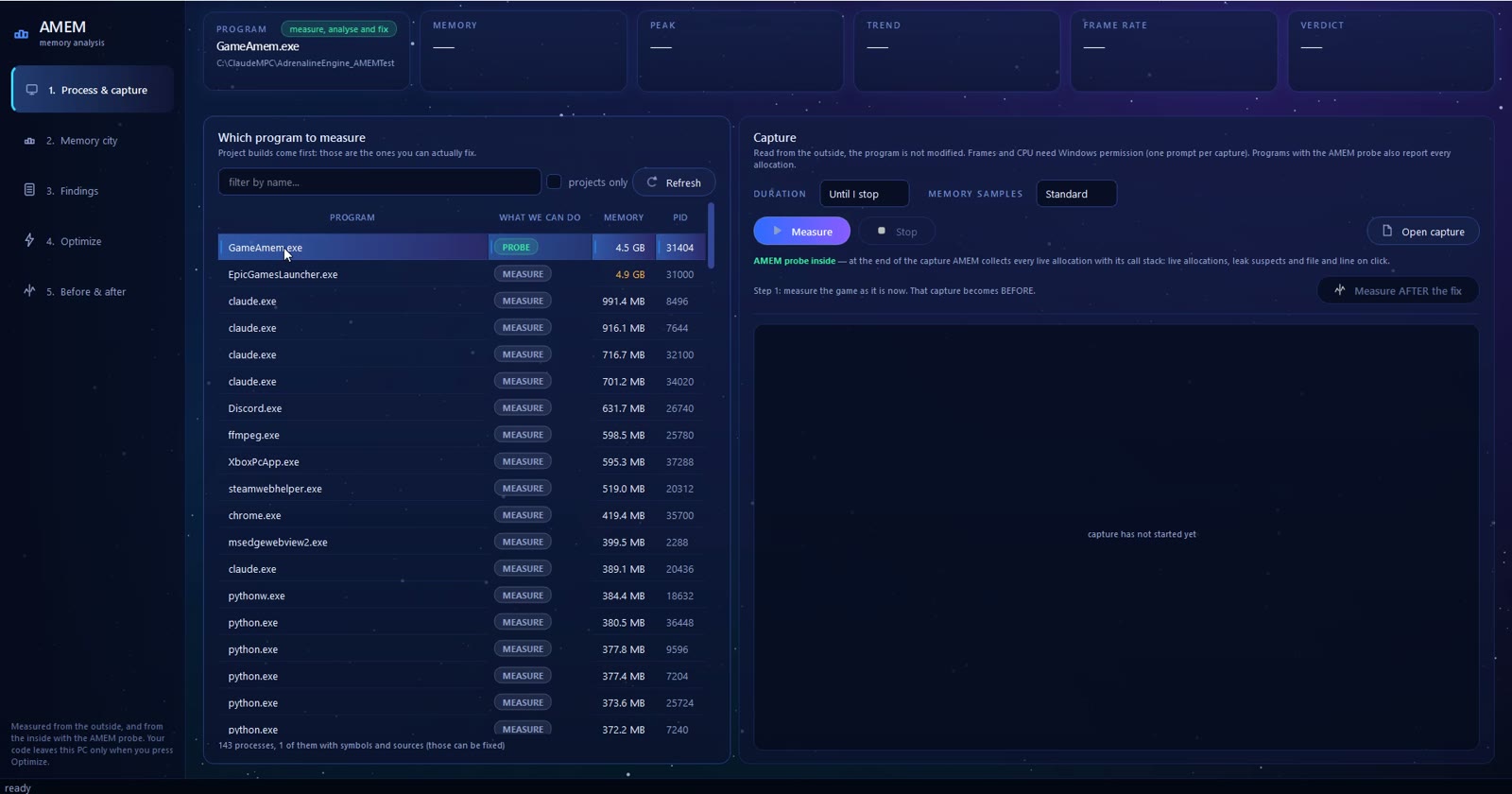
The game sits at the top with a green PROBE badge: it has the AMEM probe built in.
Start your game first, then AMEM. The list shows every running program, with project builds first, because those are the ones you can fix. The What we can do column says plainly what AMEM can get out of each one:
| Badge | Condition | What you get |
|---|---|---|
| PROBE | the AMEM probe is built in (see below) | every live allocation with its call stack, the memory city, file and line on click |
| measure, analyse and fix | a .pdb and the sources are present | file and line, and Optimize can propose a fix |
| measure and pinpoint | a .pdb, no sources | function, file and line, nothing to edit |
| MEASURE | neither | memory, frames and CPU as numbers |
- Pick the game. Tick projects only to hide everything else, or type in the filter.
- Choose a Duration. The default is Until I stop: play as long as you need, AMEM saves a checkpoint every 5 minutes.
- Press Measure. Windows asks for permission once per capture: frame timing and CPU sampling use Windows event tracing, which needs administrator rights. Only a small helper gets them and it exits when the capture ends. The AMEM window itself never runs elevated. If you say no, the memory capture still works and the report says why frames are missing.
- Play your usual scenario. Memory is drawn live.
- Press Stop. AMEM resolves the call stacks to functions and lines, analyses the capture and opens the memory city on its own.
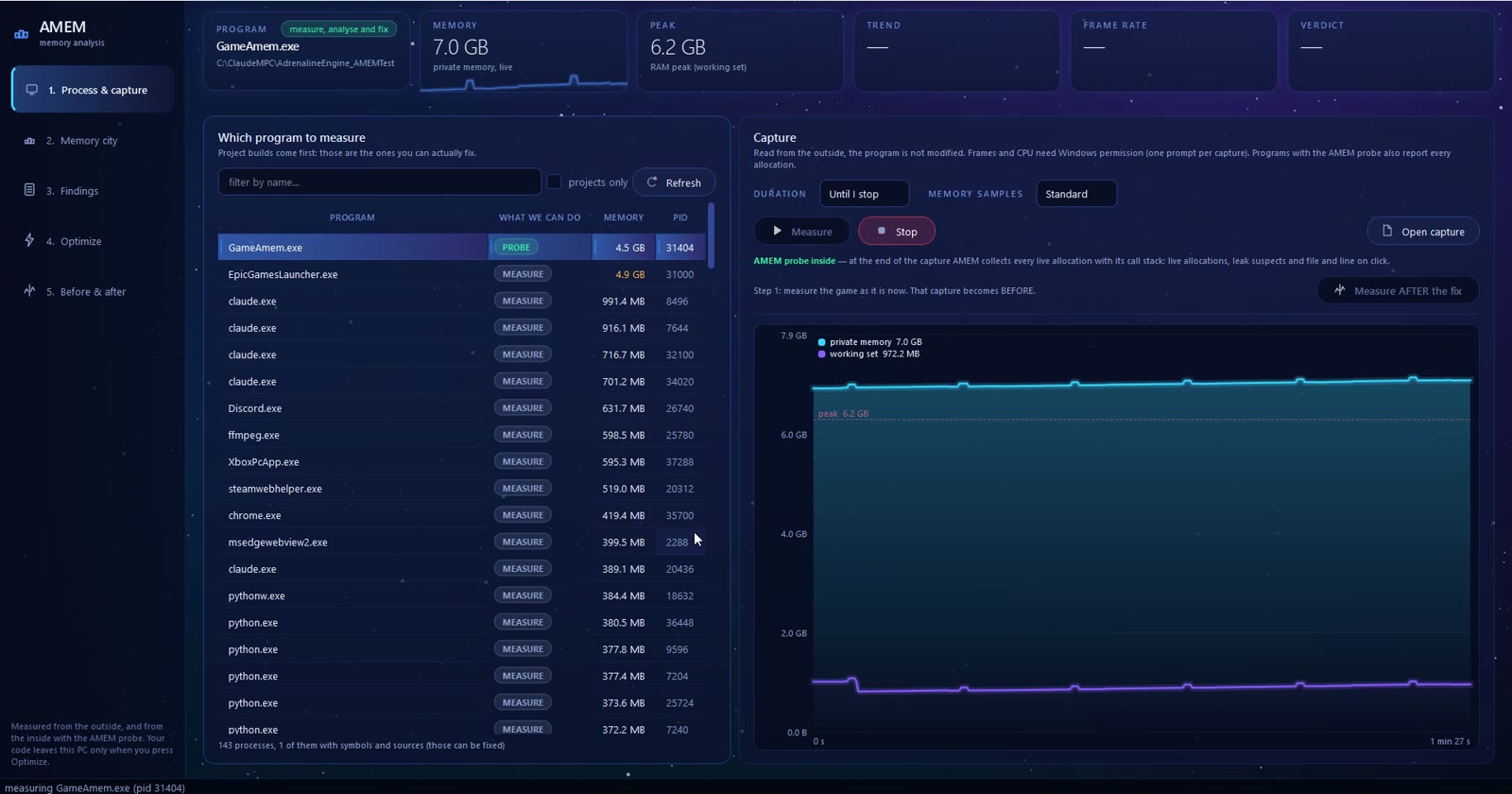
A capture in progress: private memory and working set, live.
This first capture becomes your BEFORE. Step 5 compares the next one against it.
Step 2Memory city
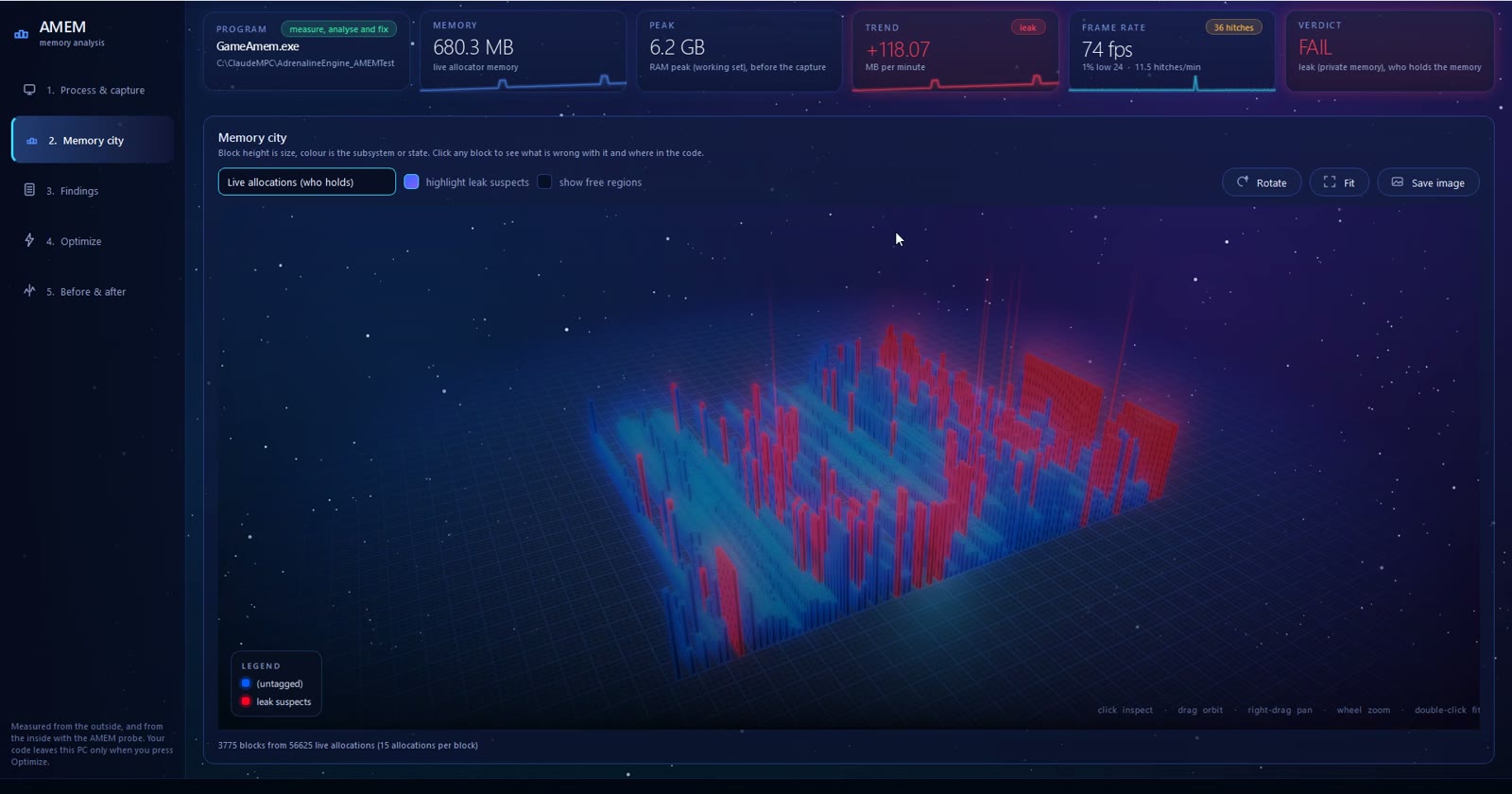
Every block is live memory. Red blocks are leak suspects.
Block height is size, colour is the subsystem or the state. Three views: live allocations (who holds the memory), address-space regions and inside the NT heap. Highlight leak suspects lights up the blocks that were allocated and never freed.
Mouse: click to inspect, drag to orbit, right-drag to pan, wheel to zoom, double-click to fit. Rotate, Fit and Save image sit in the top right corner.
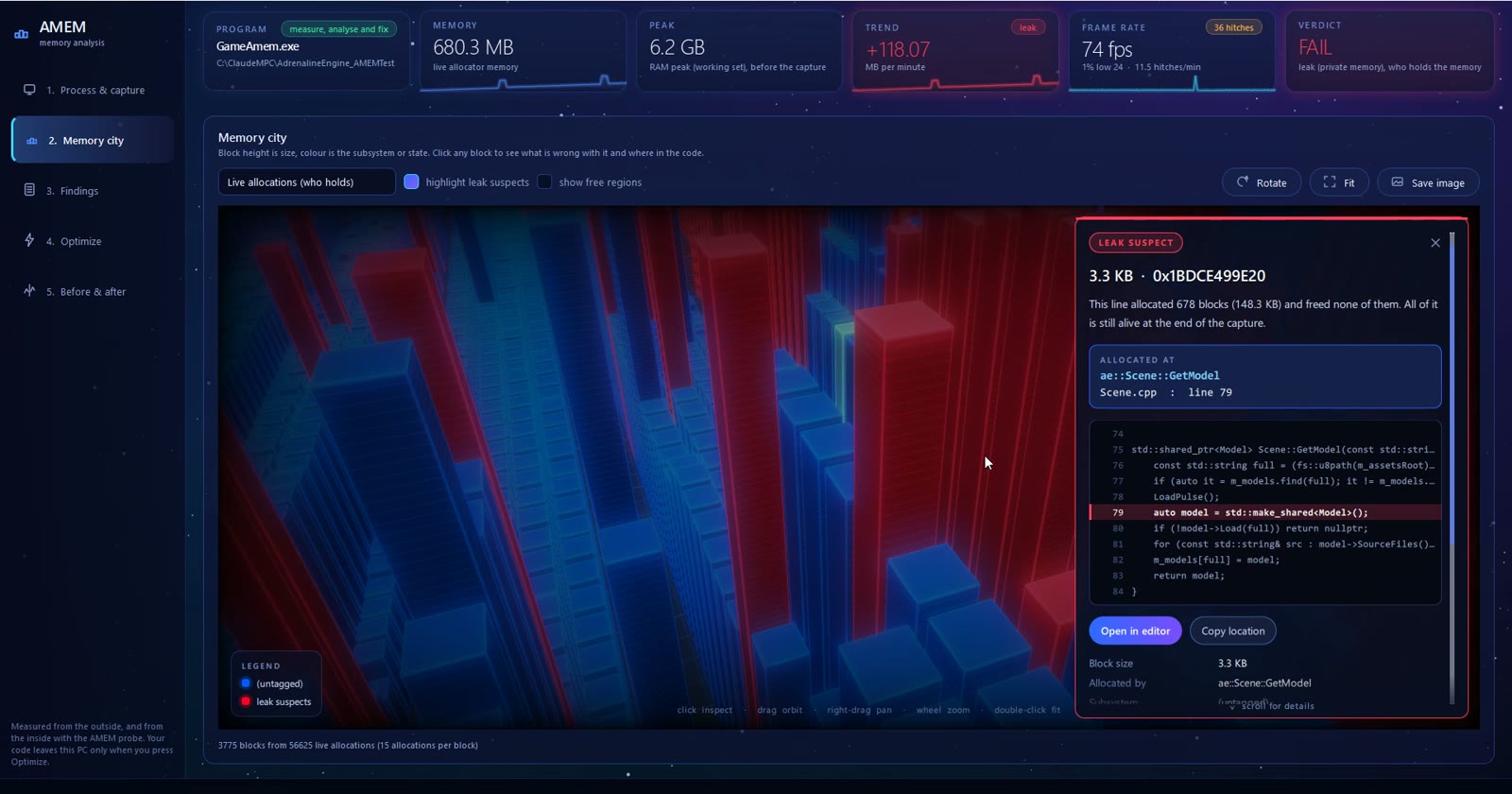
Click a block: the verdict, the function that allocated it, the file, the line and the code around it.
Open in editor opens the source file in the editor Windows uses for it; Copy location copies file:line, ready to paste into your IDE.
Step 3Findings
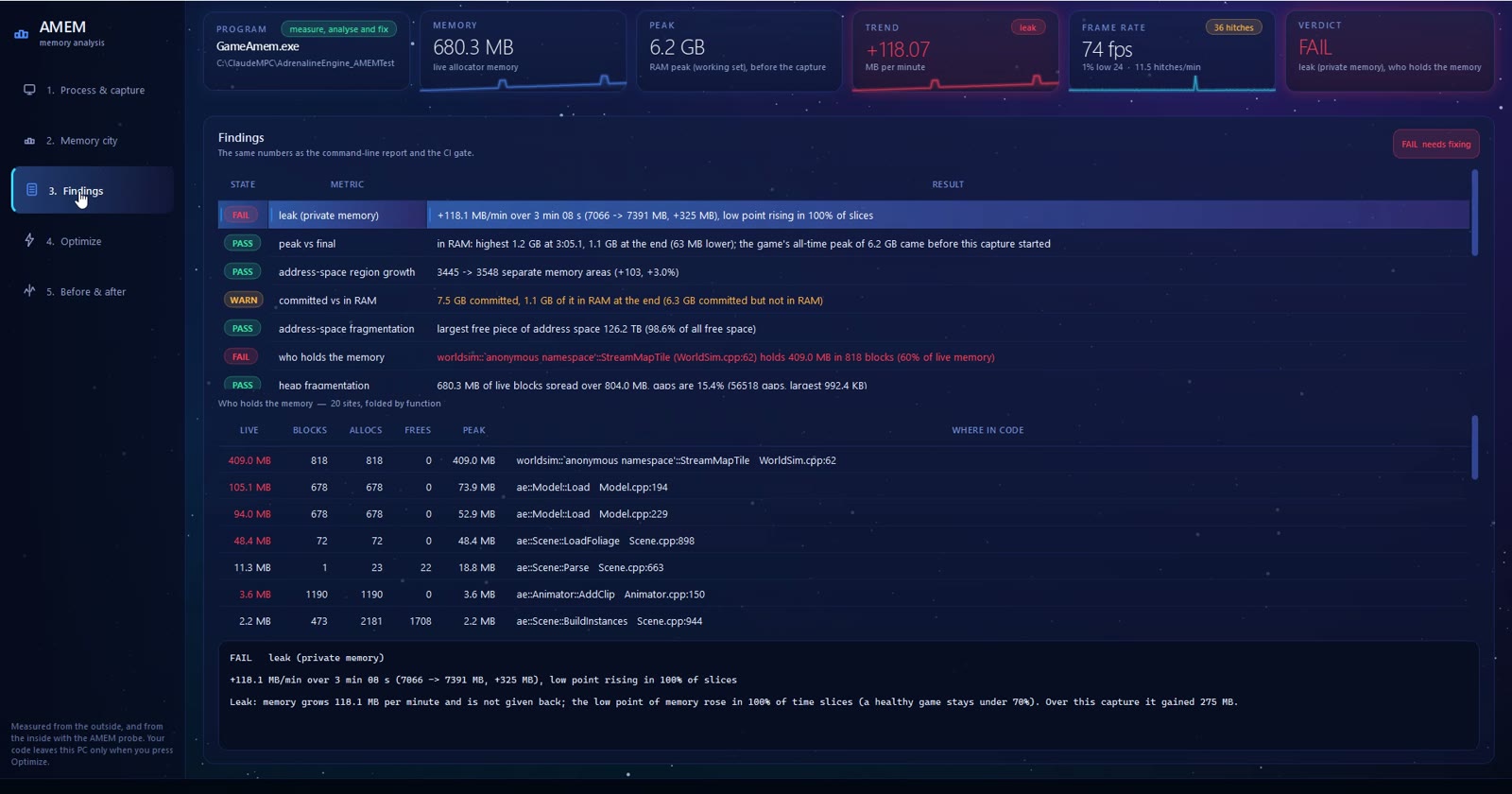
Every check in plain words. Here: a leak of 118 MB per minute, held by StreamMapTile in WorldSim.cpp, line 62.
A PASS / WARN / FAIL table, the same numbers as the command-line report and the CI gate. Click a row to read what it means. The checks cover:
- Memory: leak, peak vs final, committed vs in RAM, address-space growth and fragmentation, heap fragmentation, who holds the memory.
- Allocations: rate per second and per frame (and which function makes most of them), size spread, single-use blocks.
- Frames and CPU: frame rate with 1% and 0.1% lows, hitches, what limits the frame rate (CPU, GPU or waiting for the screen), hitches during memory spikes, CPU time by function.
Below the table, who holds the memory lists the code locations by live memory, with blocks, allocations, frees and peak. A site with many allocations and zero frees is the classic leak.
Loading at the start and closing at the end are recognised and left out, so a game that loads 5 GB is not called a leak, and a game you closed during the capture is not read as a drop.
Step 4Optimize
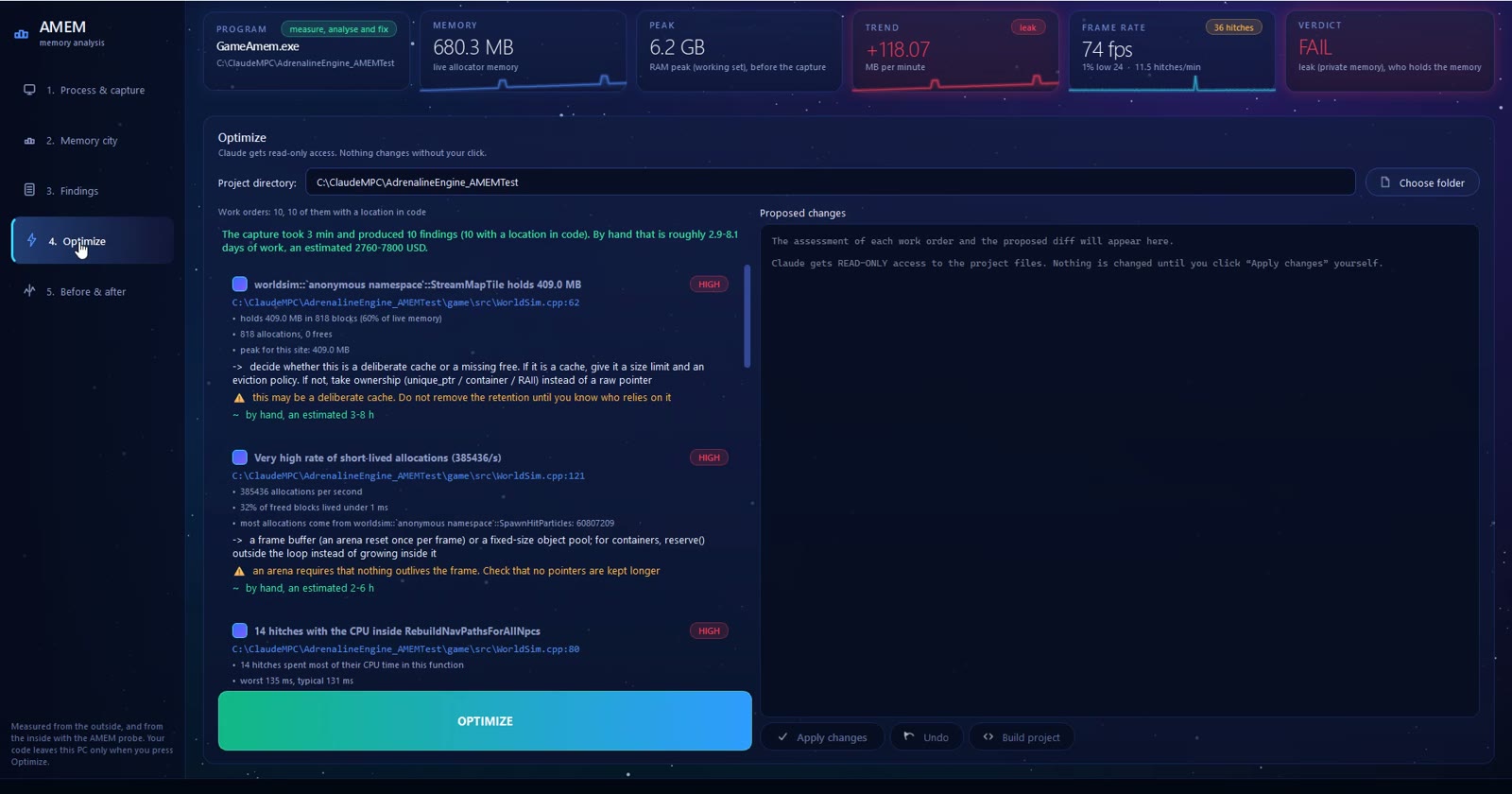
Each finding becomes a work order: the location, the evidence from the capture, what to do, the risk and a time estimate.
The project folder is filled in from the program you measured. Every work order shows the code location, the evidence, a suggested direction, the risk to watch for and an estimate of how long it would take by hand.
OPTIMIZE runs Claude Code on your project with read-only access: it may only read and search files, with no other tools, no MCP servers and none of your own Claude settings. If it tries anything else, AMEM refuses its answer. What comes back is a diff with notes.
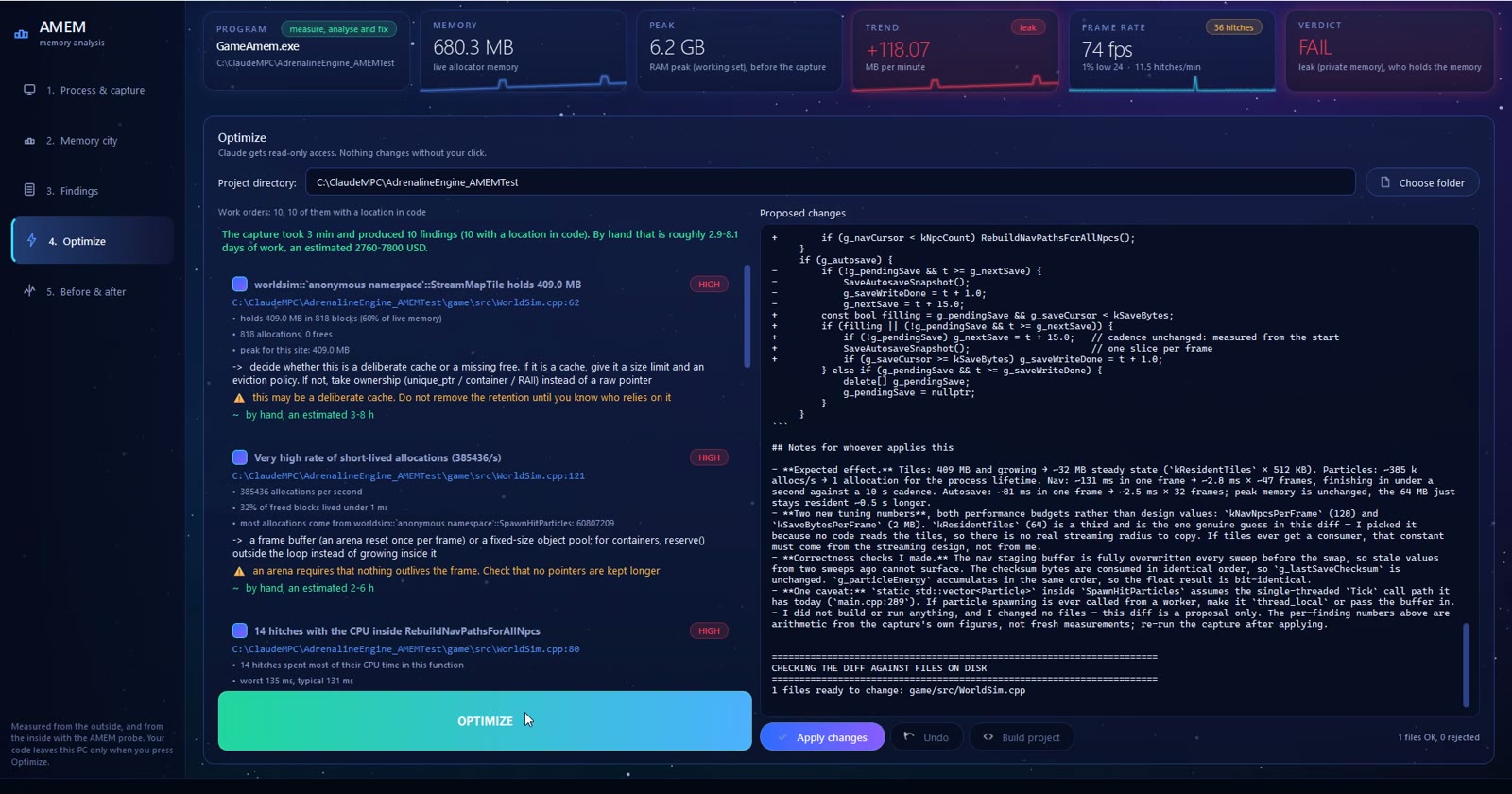
The diff is checked against the files on disk. Here: 1 file OK, 0 rejected.
- Read the diff. Every change is checked against the files on disk; anything that does not match is rejected.
- Apply changes asks once more, then writes the files. Every changed file first gets a
.bakcopy next to it. Undo restores those copies. - Build project runs your own build: Unreal through UBT, or a
build.bat/buduj.bat/kompiluj.bat/make.batin the project folder, or CMake, or a Visual Studio solution. Live Coding is never used.
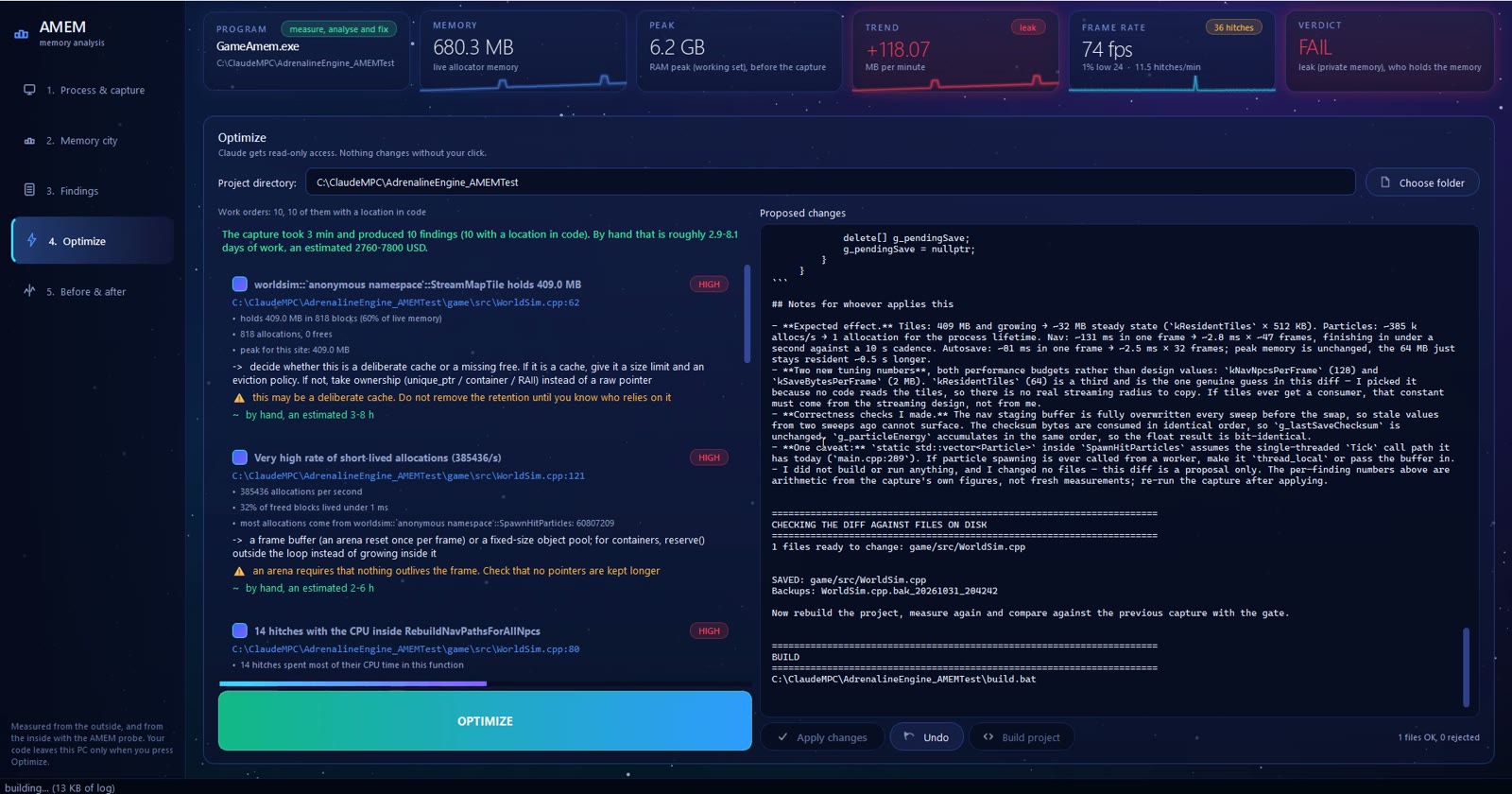
The build runs in the panel and reports its exit code.
Optimize and Build refuse to run when AMEM itself was started as administrator, so project scripts never run elevated. Nothing is written to your code without your click.
Step 5Before & after
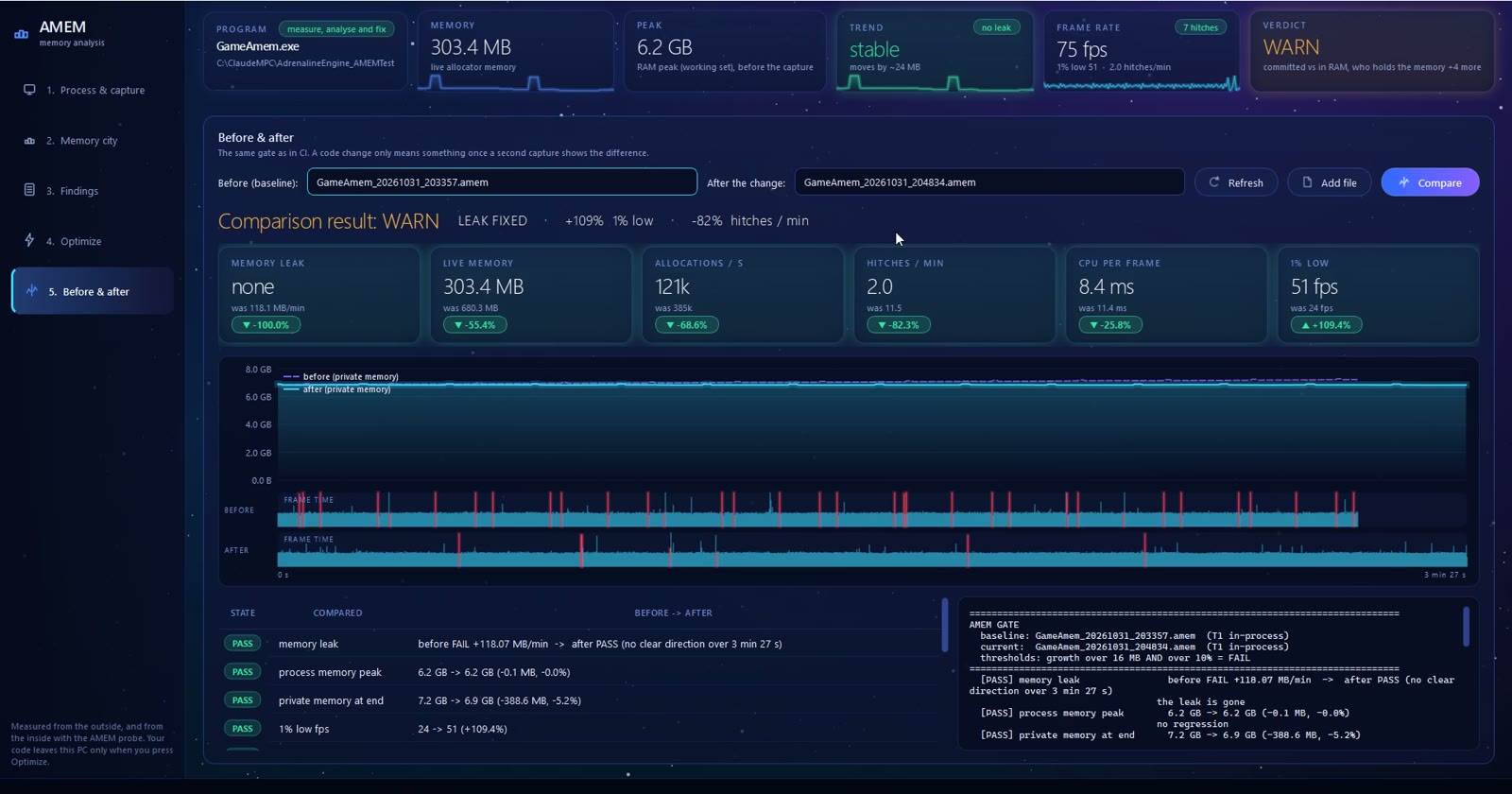
The same game before and after the fix: leak gone, live memory -55%, allocations -69%, hitches -82%, 1% low fps 24 to 51.
- Start the fixed build of the game.
- In Process & capture press Refresh and pick the game again: a restarted game is a new process.
- Press Measure AFTER the fix and play the same scenario for the same time as before.
- Press Stop. AMEM compares AFTER with BEFORE on its own and opens this page.
The tiles show the change in memory leak, live memory, allocations, hitches, CPU per frame and the 1% low. Both memory curves and both frame-time strips sit on one time axis. The table below is the same gate you can run in CI. Average FPS is marked not comparable when the two captures spent very different shares of time waiting for the screen, because then the average says more about V-Sync than about your code.
You can also compare any two captures by hand: pick them in the two lists and press Compare.
The AMEM probe (file and line for every allocation)
Measuring from the outside tells you that memory grows and by how much. To learn which line holds it, build the probe into a
profiling build of your game. It is four source files and no code changes: it starts by itself before main().
The files are in the AMEM install folder under _internal\T1. With CMake:
include(path/to/amem.cmake)
amem_attach(MyGame)   # the probe, plus .pdb symbols for the game and its own libraries
Without CMake: add amem.h, amem.cpp, amem_new.cpp and amem_auto.cpp to the build, link
psapi.lib, compile with /Zi and link with /DEBUG.
| Measured on 2 million new/delete pairs | ns per operation |
|---|---|
| without the probe | ~40 |
| probe, call stack of every allocation (default) | ~850 |
probe, AMEM_STACK_ONE_IN=8 | ~390 |
Keep the probe in a separate profiling executable, not in the build your players get. Settings are environment variables:
AMEM_DISABLE=1, AMEM_STACK_ONE_IN=N, AMEM_HEAPWALK=1.
Unreal Engine
Measuring from the outside works on any Unreal build, editor or packaged: memory, frames, and CPU time by function, file and line when the
.pdb files are there. For the editor, AMEM reads the project from the editor's command line, so it knows which project's
Binaries and Source belong to the process. Build project uses UBT; close the project's editor before building.
Command line and CI
Everything the window does is also available from AMEM-cli.exe in the install folder:
AMEM-cli.exe --capture --exe MyGame.exe --seconds 120 --out capture.amem   (memory, frames, CPU, probe)
AMEM-cli.exe --capture --exe MyGame.exe --seconds 120 --no-frames          (memory only, no permission prompt)
AMEM-cli.exe --report capture.amem --md report.md
AMEM-cli.exe --gate --baseline before.amem --current after.amem
AMEM-cli.exe --case-study capture.amem --out case.md
AMEM-cli.exe --license status | activate KEY | trial
Exit codes: 0 PASS, 1 WARN, 2 FAIL, 3 not licensed. The gate fails a build only when
growth crosses both thresholds at once, 16 MB and 10% by default (--threshold-mb, --threshold-pct), so a small
project is not failed over 2 MB and a large one does not sail through with 300 MB.
Claude Code (MCP)
The installer can add AMEM to Claude Code for you. By hand:
claude mcp add amem -- "C:\path\to\AMEM\AMEM-cli.exe" --mcpCheck it with claude mcp list: amem should show as connected. Then open Claude Code in your project folder
and ask in plain words, for example:
- "Which of my processes can AMEM measure, and which can it fix?"
- "Measure MyGame.exe for two minutes and tell me who holds the most memory."
- "Show me the findings for the last capture and what to fix first."
- "Compare the last two captures with the gate. Is the leak gone?"
The MCP server needs the same AMEM license as the window (amem_license shows its state).
The tools: amem_processes, amem_project, amem_measure, amem_report, amem_who_holds,
amem_heap, amem_findings, amem_value, amem_case_study, amem_city, amem_gate,
amem_build, amem_apply_patch, amem_undo, amem_symbolize, amem_captures,
amem_enable_deep and amem_license. Changes to code go through amem_apply_patch only with your explicit approval,
with the same .bak copies.
Permissions and privacy
| What | Needs | Leaves this PC? |
|---|---|---|
| Memory capture from the outside | a normal user | no |
| Frames and CPU sampling | one Windows permission prompt per capture, for a small helper only | no |
| Probe snapshot | nothing | no |
| License check | internet at activation and at least every 30 days | the key, a machine fingerprint (a hash), the AMEM version and the computer name; nothing about your code |
| Optimize | Claude Code installed | yes: the work orders and the files Claude reads go to Anthropic, only when you press the button |
No DLL injection and no attaching to other processes: the outside capture uses the same Windows calls as Task Manager, and the probe is code you compile into your own build.
Troubleshooting
Windows SmartScreen: "Windows protected your PC"
The installer is not code-signed yet, so Windows warns on first run. Choose More info, then Run anyway.
To check that the file is the one we published, run Get-FileHash amem-setup-1.1.0.exe in PowerShell: the hash must be
3C071F2B70009ECE18107C2F4764441861DA04602C640C5E3A6AD68C2D35FC9B. If it differs, do not run it and write to support@adrenalinegames.pl.
"Process 1234 is no longer running"
The game was closed or restarted, so it has a new process number. Press Refresh and pick it on the list again.
No frame rate in the report
The Windows permission prompt was declined or closed. Memory was still captured; measure again and allow the prompt.
Only numbers, no file and line
The program shows MEASURE: there is no .pdb next to it. Build with /Zi and /DEBUG and keep the
.pdb from the same build. A .pdb from a different build is skipped on purpose, because it would point at the wrong lines.
Optimize or Build project is disabled
AMEM was started as administrator. Close it and start it normally.